查找

Question
· Avr 11, 2024

Question about InterSystems API (IAM) install from tar file with IRIS running locally

I downloaded IAM-3.4.2.0-5604.tar.gz from the Online Distribution site this morning, it the implementation to install it on our Development environment to see if it is a viable solution. Following the instructions, I have ran into an issue trying to make sure I am entering the information into the prompts correctly.

I have IRIS HealthShare Health Connect 2024.1 running locally using a Local Web Server, so when prompted I have entered the IP Address and port 443 is that correct? 

:>iam-setup.sh
Welcome to the InterSystems IRIS and InterSystems API Manager (IAM) setup script.
This script sets the ISC_IRIS_URL environment variable that is used by the IAM container to get the IAM license key from InterSystems IRIS.
Enter the full image repository, name and tag for your IAM docker image:
intersystems/iam:3.4.1.0
Enter the IP address for your InterSystems IRIS instance. The IP address has to be accessible from within the IAM container, therefore, do not use "localhost" or "127.0.0.1" if IRIS is running on your local machine. Instead use the IP address of your local machine. If IRIS is running in a container, use the IP address of the host environment, not the IP address of the IRIS container:
xxx.xxx.xxx.xxx
Enter the web server port for your InterSystems IRIS instance:
443
Enter the password for the IAM user for your InterSystems IRIS instance:
Re-enter your password:
If local policy requires that HTTPS be used for communication, please provide the full path to your CA Certificate file now. Otherwise hit "Return":
/etc/pki/ca-trust/source/anchors/OSUWMC_CA.pem
If your InterSystems IRIS instance is only accessible via its CSPConfigName URL prefix, please provide the prefix with a trailing slash (/) now. Otherwise hit "Return":

Your inputs are:
Full image repository, name and tag for your IAM docker image: intersystems/iam:3.4.1.0
IP address for your InterSystems IRIS instance: xxx.xxx.xxx.xxx
Web server port for your InterSystems IRIS instance: 443
CA Certificate for HTTPS: /etc/pki/ca-trust/source/anchors/OSUWMC_CA.pem
CSPConfigName URL prefix:
Would you like to continue with these inputs (y/n)?
y
Getting IAM license using your inputs...

Couldn't reach InterSystems IRIS at xxx.xxx.xxx.xxx:443. One or both of your IP and Port are incorrect.

I have verified that...

  • IAM user is enabled
  • /api/iam is enabled

What port should be specified if you are running a Local Web Server/Web Gateway?

Thanks

Scott

9 Comments
Discussion (9)2
Connectez-vous ou inscrivez-vous pour continuer
Question
· Avr 10, 2024

Initiating a Method After a Timeout During Message Delivery

Hello everyone,

I'm currently working on a business operation that employs a retry mechanism with a FailureTimeout = -1. So, this BO attempts to resend the message at the end of a RetryInterval of n seconds (n is configurable).

What I would like to achieve is to set a timer that runs in parallel with the sending mechanism so that, If I don't receive a response within m seconds (also is configurable and m<=n) from the initial message send (with RetryCount = 1), an alert or something similar is triggered. The latter should initiate a second method to run concurrently with the first one (which is still attempting to send), allowing me to send a message to a business process to handle the situation. Then this BP will process the alert appropriately, such as sending an email or notification.

I've tried some solutions using the JOB command and the BO's Alerting settings (for ex., Queue Wait Alert), but I haven't been able to achieve the desired result. I'm not familiar with process parallelization in IRIS, so I was wondering if someone more experienced could point me in the right direction for this implementation.

Thank you

4 Comments
Discussion (4)3
Connectez-vous ou inscrivez-vous pour continuer
Article
· Avr 3, 2024 2m de lecture

Comfortable VSCode Auto Save and ObjectScript CompileOnSave settings

Hi - Recently I have been investigating an annoying situation whilst editing ObjectScript classes or routines in VSCode.

What was happening to me was, as I was typing in lines of code into my class (for example, adding a new Method, or changing the Class signature, or a block of code),  this would quickly get syntax checked, re-formatted, and compiled - inevitably, (since I would be mid-way through my typing), this would generate compilation errors.

Knowing that I was mid-way through adding code, I could simply dismiss this message, however, this soon got very annoying, and conditioned me to ignore the error (which is not a good thing).

Even worse, however, is that the compilation process also reformatted the document and sometimes broke what was previously well formatted lines of code (appearing below the line I was writing) - which required me to go into that area of the document and fix them back up.

What's going on ?

There are two settings at play here:

  1. VSCode's auto-save (files.autosave) settings which dictates wether to automatically save a document that has been changed, and if so, how long to wait before saving (files.autoSaveDelay)
  2. ObjectScript extension's compileOnSave (objectscript.compileOnSave), which determines wether after saving the document, this also imports into and compiles on the connected IRIS namespace.

Since I had autosave turned on, and on a short wait delay together with compileOnSave meant that partially edited code kept compiling, generating the above erros, and as mentioned, sometimes re-formatting good, pre-existing blocks of code.

In my case, I have settled on the following:

  1. AutoSave (files.autosave) off (autosaveDelay is ignored),  and
  2. CompileOnSave (objectscript.compileOnSave) on.

Now, when I'm happy with my edits (in my own time !), I press Ctrl-S, to save, import and compile my class, and look out for that pop-up message which has real meaning and purpose now.

You may choose a different combination, (for example, go ahead and Autosave after 5 minutes or so, accepting the code may not fully compile), however, I've found the above combination works for me, and hope that - if you are experiencing the same annoyance, then, this article may help you find your optimum configuration.

Thankyou to @Patrick Sulin, and @Raj Singh for pointing me in the direction of these settings !

Steve Pisani
12 Comments
Discussion (12)8
Connectez-vous ou inscrivez-vous pour continuer
Article
· Avr 3, 2024 3m de lecture

Connect Microsoft Excel to InterSystems IRIS via ODBC (Windows)

How to create an ODBC connection on your native Windows laptop to IRIS running on a Windows VM on the same computer, test the connection, and pull data from IRIS into Excel.

Recently I learned that Excel can connect to external databases via ODBC. This includes basically any ODBC data source. Since IRIS speaks ODBC via the ODBC API, we can take advantage of the InterSystems ODBC Driver to establish an ODBC connection to IRIS on Windows that Excel can utilize.

Before getting started, make sure you have installed the latest InterSystems ODBC driver on your native Windows, which can either be found on WRC or on GitHub. I assume that you are running IRIS on a Windows VM using VMWare hosted on your Windows machine. I also assume that you have Microsoft Excel installed on your native Windows as well. You’ll also need some data pre-loaded into your namespace to access. For this post, I am using data from the Python Quickstart. The data can be found on GitHub.

First you need to find the IP address for the VM. (Keep in mind that you may need to repeat this step if you restart the VM, connect to a different network or connect/disconnect a VPN connection.)

To find your IP address in the Windows VM, go to the Windows Command Prompt (cmd):

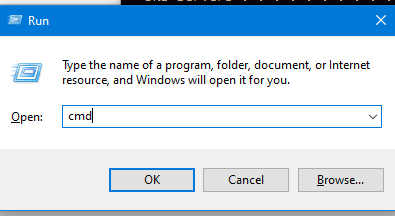
  1. In the VM, hold the Windows key and the R key. This opens the Run dialog (as seen below). Type in “cmd” and click <OK>:


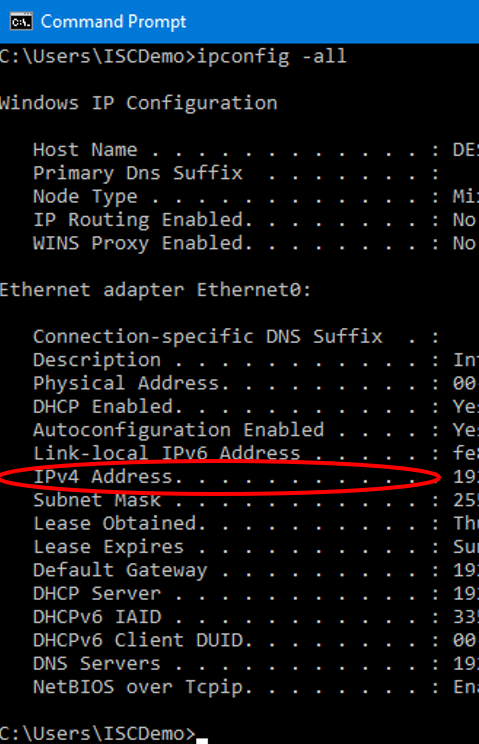
  1. On the Command Prompt, type in “ipconfig -all” to find your IP address. You want to locate the line that says “IPv4 Address….” And make note of the numeric IP address given on that line:


  1. Also make note of the Web Server Port of your VM IRIS, because you’ll need that later.


Now, return to the Windows host system and open the ODBC Data Source Administrator (ODBC DSA) and configure the connection:

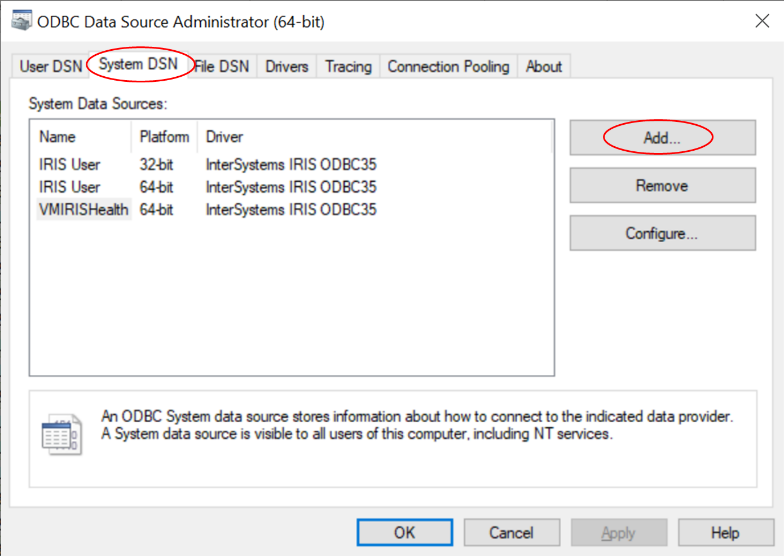
  1. In the ODBC DSA, open the “System DSN” tab and click “Add”:


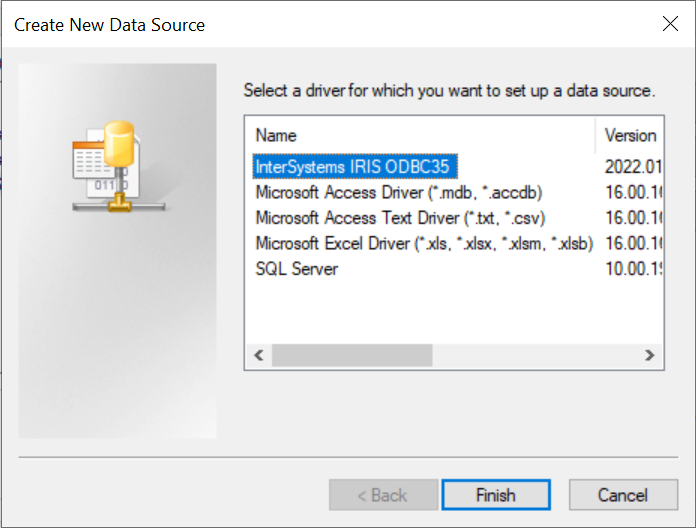
  1. You will be prompted to select a driver for the data source. If you installed the InterSystems ODBC driver on your native Windows machine, you should select “InterSystems IRIS ODBC…” as I have done below and click “Finish”:


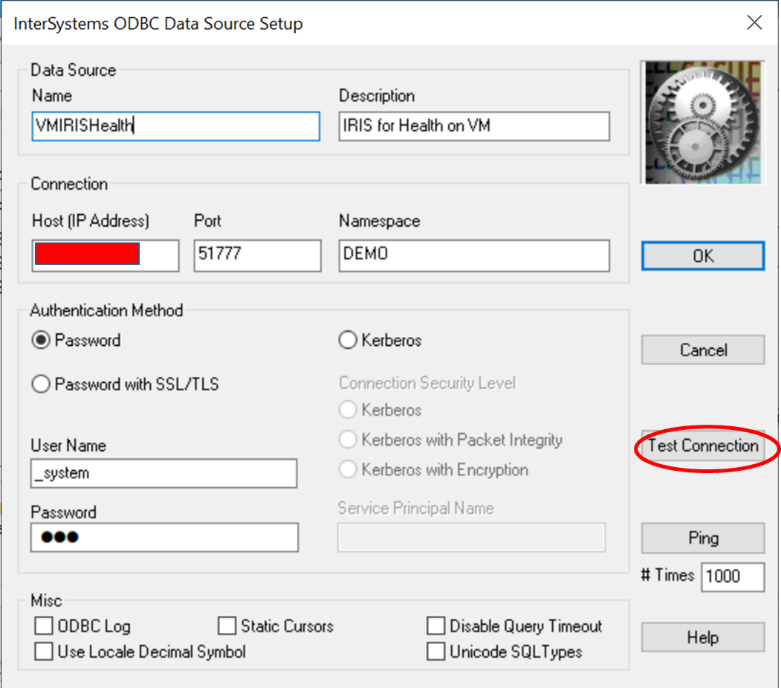
  1. This will open a new dialog where you need to name the data source, provide a description, input the IP address you copied previously and the Web Server Port. Input the namespace you want to connect to, the User Name and Password that you use for the Management Portal as well. Then click <Test Connection> as shown below:


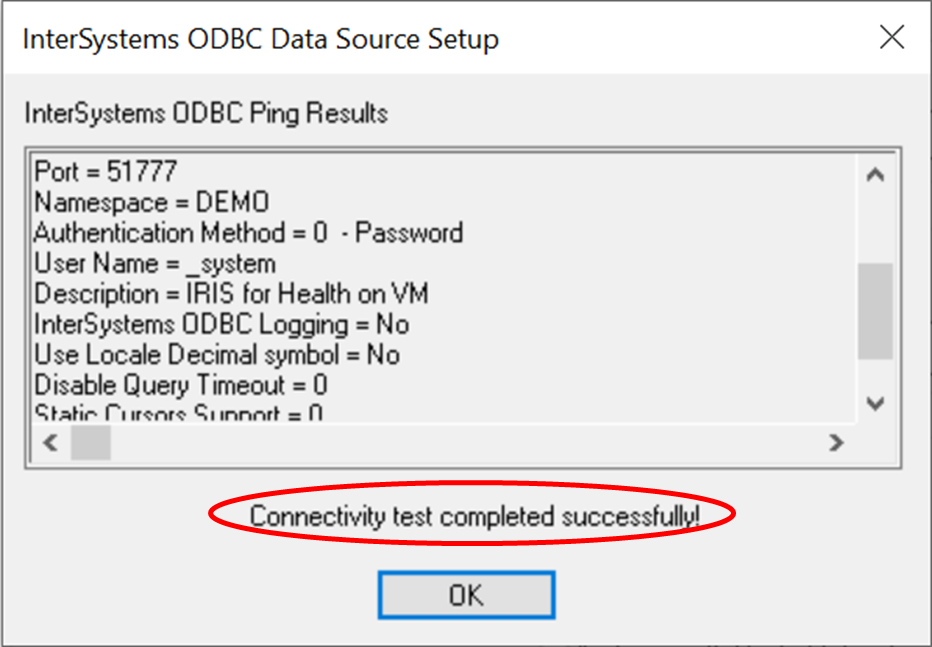
  1. If all went well, you should see that the test completed successfully as shown below. This means that we now have a connection via our native Windows to IRIS on the VM:


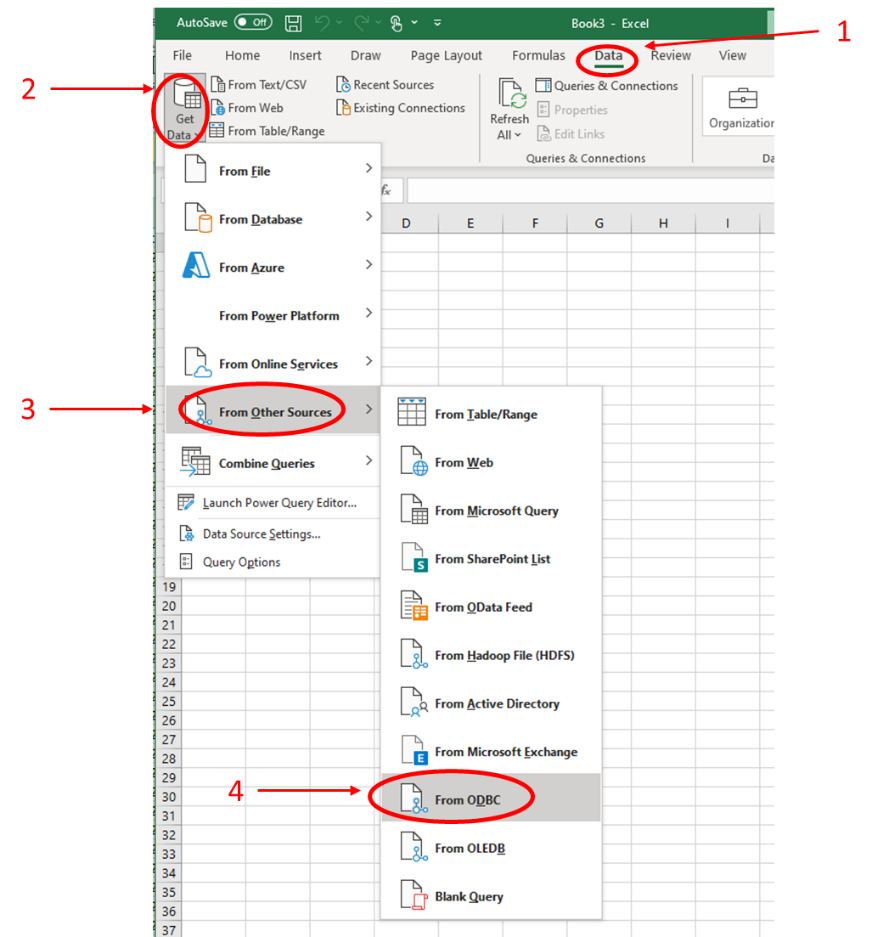
Now we can open Microsoft Excel and access data via the ODBC data source. We do this by selecting the “Data” tab (1), then clicking “Get Data” (2). Click “From Other Sources” (3), and then “From ODBC” (4).


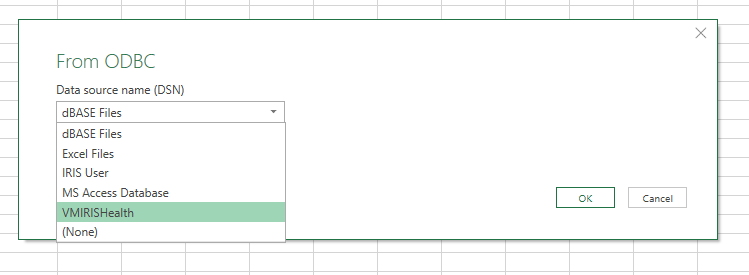
From the drop down, select the data source you created previously and click OK:


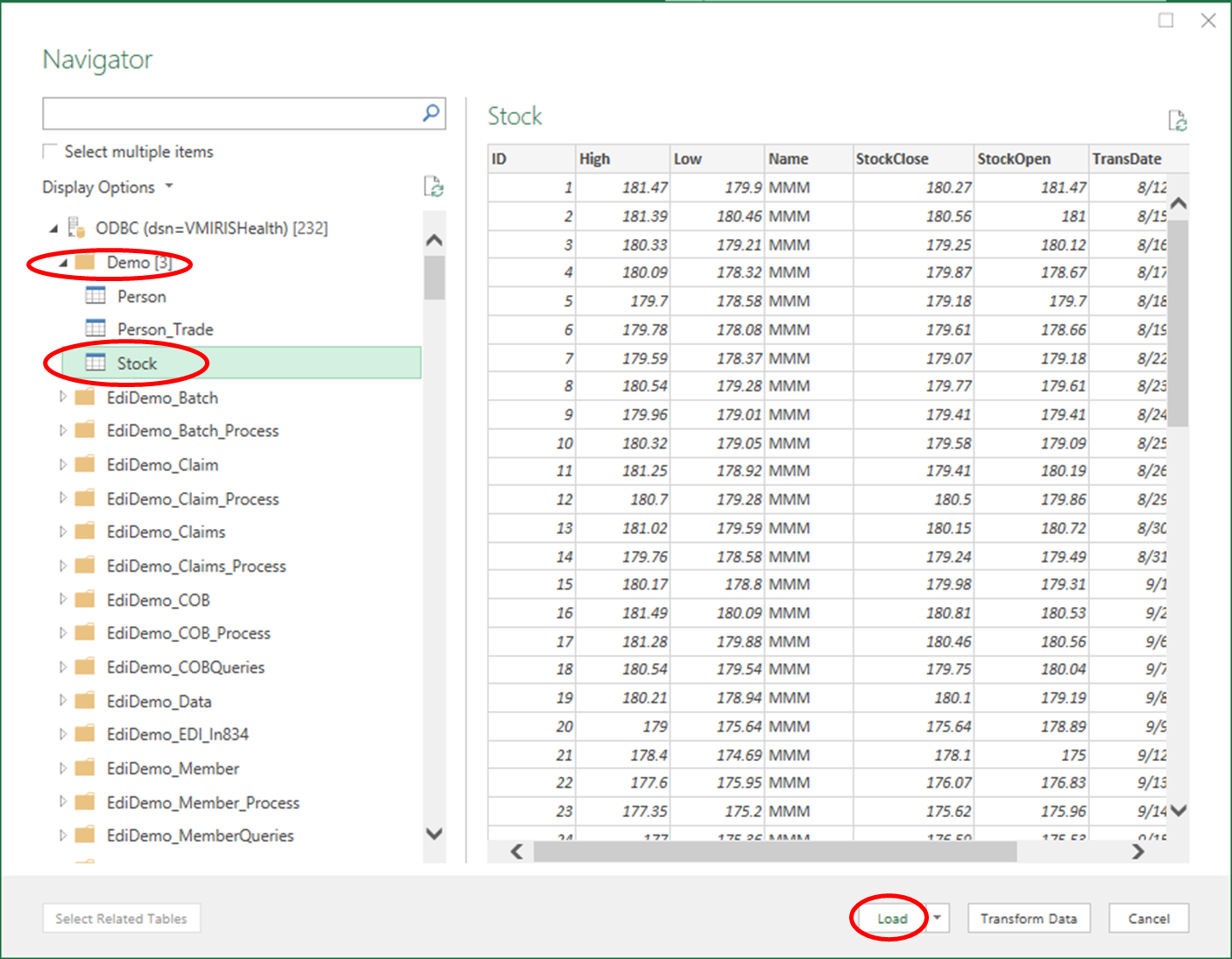
In the Navigator, select the table you want to connect to and click “Load”:


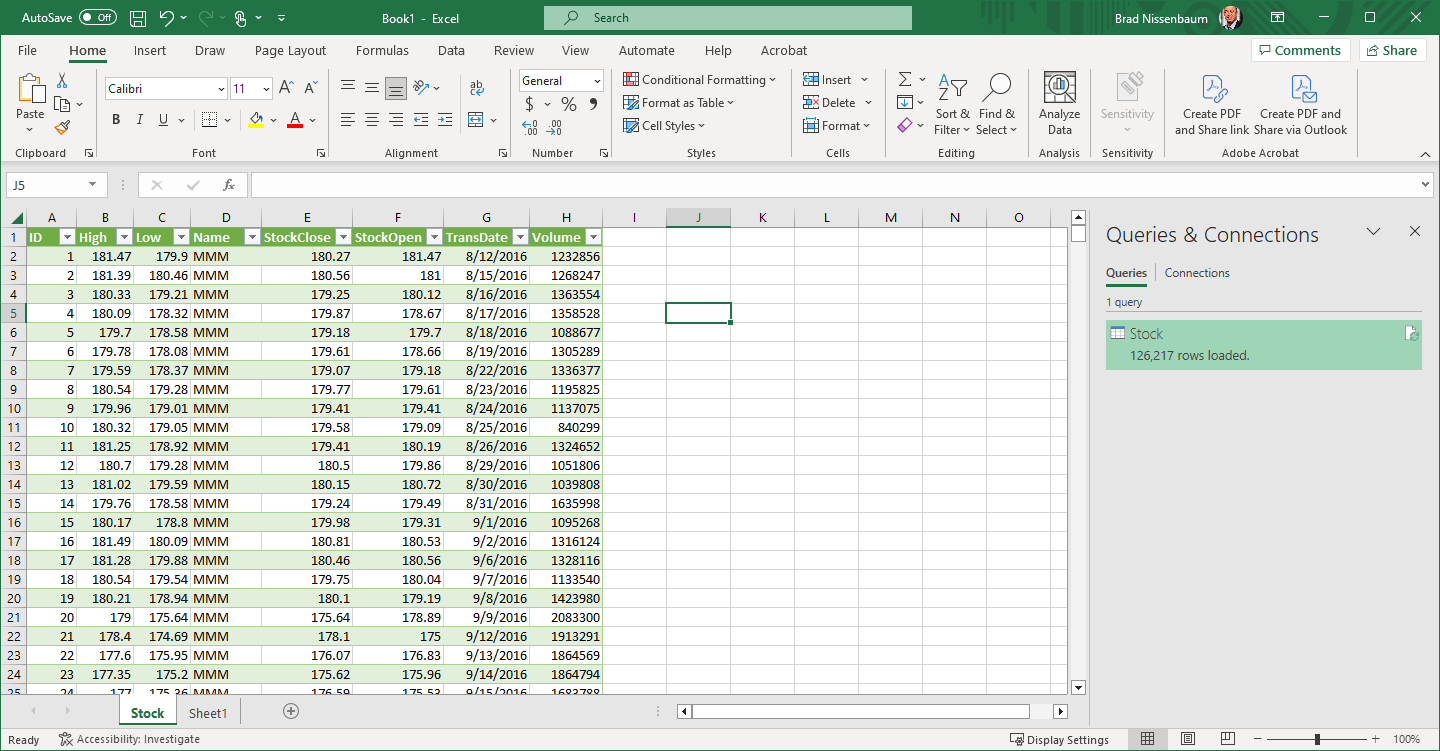
From here, we can see that we successfully connected to the data on IRIS on a VM and are able to access it in Microsoft Excel running on native Windows:


Wrapping up, we might wonder why we would want to access IRIS data in Excel. Many people have years of Excel expertise. They can use Excel to explore data, create pivot tables, visualizations, and dashboards.

2 Comments
Discussion (2)2
Connectez-vous ou inscrivez-vous pour continuer
Question
· Avr 2, 2024

Importing HealthShare WSDLs to SoapUI not working for several reasons (no authentication? linked resource not available?)

I'm currently fighting with SoapUI to get the HS WSDLs imported.

My first issue is, the IRISUsername and IRISPassword parameters don't seem to work.

i've tried the following url:

https://ifwap0661.ad.klinik.xxxyyy.de/ucrdev/csp/healthshare/hsrepositor...

result:
Error loading: org.apache.xmlbeans.XmlException: org.apache.xmlbeans.XmlException: error: The entity name must immediately follow the '&' in the entity reference.   

not entirely sure what is happening here.

if i enter the URL in a browser i'm required to still authenticate with user / pw, so i guess the Username & Password parameter somehow isn't working?

Second issue:

I downloaded the WSDL from the browser and saved it locally, to then import it into SoapUI, which also does not work:
Error loading [http://www.intersystems.com:80/healthshare/ihe/schema/IHE/XDS.b_Document... org.apache.xmlbeans.XmlException: org.apache.xmlbeans.XmlException: error: Element type "link" must be followed by either attribute specifications, ">" or "/>".  

going to http://www.intersystems.com:80/healthshare/ihe/schema/IHE/XDS.b_Document... doesn't seem to provide the required document.

have these been moved? are there new WSDLs provided somewhere?

1 Comment
Discussion (1)2
Connectez-vous ou inscrivez-vous pour continuer